Timers Menu
61 Set Date & Time
Used to set the system date and time. The date follows the following format dd/mm/yy i.e. Day/ month /year and the time is in 24Hr format as follows hh:mm i.e. Hours : minutes.
You will be prompted to key-in the time and date when you initially power-up your system.
62 System Timers
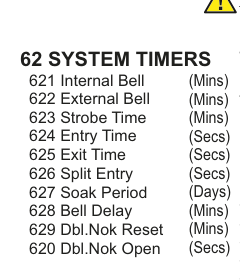
Vertical list showing the 62 System Timers sub-menu with ten timer parameters numbered 621 to 620, each with its unit of measurement: 621 Internal Bell (Mins), 622 External Bell (Mins), 623 Strobe Time (Mins), 624 Entry Time (Secs), 625 Exit Time (Secs), 626 Split Entry (Secs), 627 Soak Period (Days), 628 Bell Delay (Mins), 629 Dbl.Nok Reset (Mins), 620 Dbl.Nok Open (Secs).
This menu is used to program timers in the control panel. To edit a time select it using the PREV or NEXT keys then press YES. Enter the new time to be used. The new time will then be programmed. Most of the timers are self explanatory but there are a two things to note.
| Timer | Code | Unit |
|---|---|---|
| Internal Bell | 621 | Mins |
| External Bell | 622 | Mins |
| Strobe Time | 623 | Mins |
| Entry Time | 624 | Secs |
| Exit Time | 625 | Secs |
| Split Entry | 626 | Secs |
| Soak Period | 627 | Days |
| Bell Delay | 628 | Mins |
| Dbl.Nok Reset | 629 | Mins |
| Dbl.Nok Open | 620 | Secs |
Split Entry time is an EN 50131-1 feature. If at the end of the entry time the system has not been unset it will only activate the internal siren and the Split Entry time starts. Then at the end of the Split Entry time, if the system still has not been unset, both internal and external sirens will activate and a message sent to the monitoring station (usually this message happens after a further 20 second delay - or 30 seconds in UK).
"Dbl. Nok" is shorthand for Double Knock. Zones with the Double Knock feature need to be activated twice within the Dbl.Nok Reset period before they are flagged. Or, they need to remain activated for the duration of the Dbl.Nok Open period before they are flagged.
63 Misc. Timers

Vertical list showing the 63 Misc. Timers sub-menu with three timer parameters: 631 Wks 2 Service (Weeks), 632 Fire Exit Delay (Secs.), 633 Mains Flt Dly (Mins).
| Timer | Code | Unit |
|---|---|---|
| Wks 2 Service | 631 | Weeks |
| Fire Exit Delay | 632 | Secs |
| Mains Flt Dly | 633 | Mins |
Wks 2 Service menu is used to program the number of weeks between system services. When the service period expires, Service Due ... Contact Engineer will be displayed, as a prompt to the user, everytime the system is unset. Note that programming "00" disables this feature.
Fire Exit Dly; you can delay the effects of opening a fire exit door by selecting a delay period here (in seconds).
Mains Flt Dly; During a power blackout, a mains fault will only be reported to a Central Station if it exceeds the mains fault delay period that is programmed.
Delays SMS and voice reporting also.
64 Block Timers
This is where you can adjust the Entry Time, Exit Time, Internal and External Siren Times for each block. A block is a semi-autonomous alarm system within the overall system.
65 Event Timers
Seven timers (T1 to T7) can be specially programmed to respond to or to control certain events like whether a night watchman is on duty or allowing a cleaner access at certain hours etc. These events are explained in detail below.
Open/Close
The Unexpected Open/Close event timer is used to generate events if a premises is opened or closed outside of programmed time limits. This is an example for a shop:
| Parameter | Example Value |
|---|---|
| Open Start Time | 8:30 |
| Open Finish Time | 9:30 |
| Close Start Time | 17:00 |
| Close Finish Time | 18:00 |
| Days on the Week | SMTWTFS : YES/NO option |
No action will take place on days that are marked as NO.
A Shop's opening times are normally between 9:00 - 17:30. The Open Start time of 8:30 and Open Finish time of 9:30 gives an hour's window to unset the system. The Close Start Time of 17:00 and a Close Finish Time of 18:00 allows the customer an hour to set the system.
If the Panel is armed when the Open Finish Time expires an Unexpected Close signal is logged. If the Panel is still unset when the Close Finish Time expires an Unexpected Open signal is logged. The Unexpected Open / Close signal can be sent to the monitoring station or SMS or both.
Home Alone
This timer is used to generate an event if a user has not unset the system within a certain time-frame.
| Parameter | Description |
|---|---|
| Home From Time | This is the starting time the user should unset the panel at |
| Home To Time | This is the time the parent wants to be informed if the user has failed to unset |
| User | The user that is required to unset the panel |
| Days on the Week | SMTWTFS : YES/NO option |
No action will take place on days that are marked as NO.
Example: If a child has not unset the panel between certain times the parent will be informed. The panel can SMS the parent or inform the monitoring station or both.
Enabling Home Alone: Enter 0*7 on the keypad. HomeAlone Enable is displayed. User should then enter their code to enable this feature. Home Alone Feature Enabled will be displayed.
Disabling Home Alone: Enter 0*7 on the keypad. HomeAlone Enable is displayed. User should then enter their code to disable this feature. Home Alone Feature Disabled will be displayed.
How it works:
- At the beginning of the Home from time, if the panel is already unset a text message will be generated informing the user who unset the system. This message will display the Site name, time and date and text
HomeAloneBlk Panel Unset by U02 User 2. - Between the "Home from" and "Home to" times, once the required user unsets the system a text message will be generated informing the parent that the system has been unset by this user.
- At the end of the "Home To" time, if the required user has not unset the system a text message will be generated informing the parent that the system has not been unset on time. This message will display the Site name, time and date and text
No UserUnset In Req'd Time U02 User 2.
Auto Activate
This Timer is activated if the panel is unset by a non-24hour User for longer than the interval time outside of business hours. (Please note that all users have the 24hour option set to YES by default)
| Parameter | Description |
|---|---|
| Work Start time | Time the business opens |
| Work End time | Time the business closes |
| Interval Time | Time the system is allowed to be unset by non 24hrs User without tripping the output |
| Days on the Week | SMTWTFS : YES/NO option |
No action will take place on days that are marked as NO.
Example: If there was a late delivery to a shop out of hours and the person forgot to arm the panel or was attacked while the system unset the AutoActivat output will trip and the panel will go into alarm. The AutoActivat output will trip and monitoring station can receive a signal. Both the Internal and External Bells will activate. This timer can be assigned to blocks B0 - B8.
Auto Arm Full
This timer is used to automatically and fully arms a panel that is unset at a particular time, if a user has forgotten to arm the panel using the usual method.
| Parameter | Description |
|---|---|
| Auto Arm Time | This time a customer wants the panel to Set |
| Auto Force Time | This is the time the system will inhibit any open zones and arm the rest of the alarm system |
| Interval Time | This is the time all zones must be closed for before the panel will auto arm |
Example: A customer wants a failsafe if the panel was not set. If the panel is unset and reaches the Auto Arm Time and no zones have opened of the Interval time the panel will arm. If there is an open zone when the time meets the Auto Force Time the panel will Inhibit the open zones and arm the rest of the panel. This timer can be assigned to blocks B0 - B8.
Commencement of the setting procedure will be indicated on the display. When Zone/Point inhibit option is disabled the Auto Arm function will be prevented from completion.
Auto Arm PsA / PsB
This timer is used to partially arm (or set) system A or B of the panel that is unset at a particular time, if a user has forgotten to arm the panel using the usually method.
| Parameter | Description |
|---|---|
| Auto Arm Time | This time a customer wants the panel to Set |
| Auto Force Time | This is the time the system will inhibit any open zones and arm the rest of the alarm system |
| Interval Time | This is the time all zones must be closed for before the panel will auto arm |
Example: A customer wants a failsafe if the panel was not set. If the panel is unset and reaches the Auto Arm Time and no zones have opened of the Interval time the panel will arm. If there is an open zone when the time meets the Auto Force Time the panel will Inhibit the open zones and arm the rest of the panel. This timer can be assigned to blocks B0 - B8.
Timed Access
This timer is used to restrict access to a building during a dedicated time period.
| Parameter | Description |
|---|---|
| Start Time | The time the user is allowed unset the panel |
| End Time | The time the user will be allowed to unset the panel. (Please note that if the panel is unset at this time the user can arm the panel but then cannot rearm) |
| User | The user the timed access applies to |
| Days on the Week | SMTWTFS : YES/NO option |
No action will take place on days that are marked as NO.
Example: This could be set up for a cleaner to restrict the disarming of a building.
Go to the User Options menu and ensure that the "24 Hour" option is set to NO for the User code in question.
User Alert
This timer is used to ensure there is someone on the premises when the system is in an unset state.
| Parameter | Description |
|---|---|
| Start Time | This is the start time at which a user must check in by pressing 0*5 on a system keypad |
| End Time | This is the end time at which a user must check in by pressing 0*5 on a system keypad |
| Interval Time | This is the frequency at which a user must check in by pressing 0*5 on a system keypad |
Example: This feature is used for a static guard or night watchman to check in and ensure there is someone on the premises.
66 Smart Lights
Eight timers (L01 to L08) can be programmed to control dedicated light outputs. The lights can be set to be triggered either by a zone opening, by a user code or by both. The Interval (in minutes) indicates the amount of time the light will remain illuminated.
There are 4 SmartLight options:
| Option | Description | Default |
|---|---|---|
| Night Only | If the timer is triggered, the SmartLight output only becomes active during night-time if set to YES. The panel uses its own internal calendar and clock to determine whether it is night-time. | NO |
| Flash End | Will flash OFF/ON the SmartLight output a number of times towards the end of the timer period if set to YES. | NO |
| On 4 Alarm | If the system goes into the alarm condition, the SmartLight output will activate if the On 4 Alarm (on for alarm) option is set to YES. | NO |
| User Toggle | The user can turn on and off the SmartLight output themselves if set to YES and they key-in their User Code. | NO |
67 Smart Doors
Four timers (D01 to D04) can be programmed to control dedicated door outputs for electric door locks and relays etc. The doors can be set to be triggered either by a zone opening, by a user code or by both. The Interval (in seconds) indicates the amount of time the door output will remain energised after it has been activated.